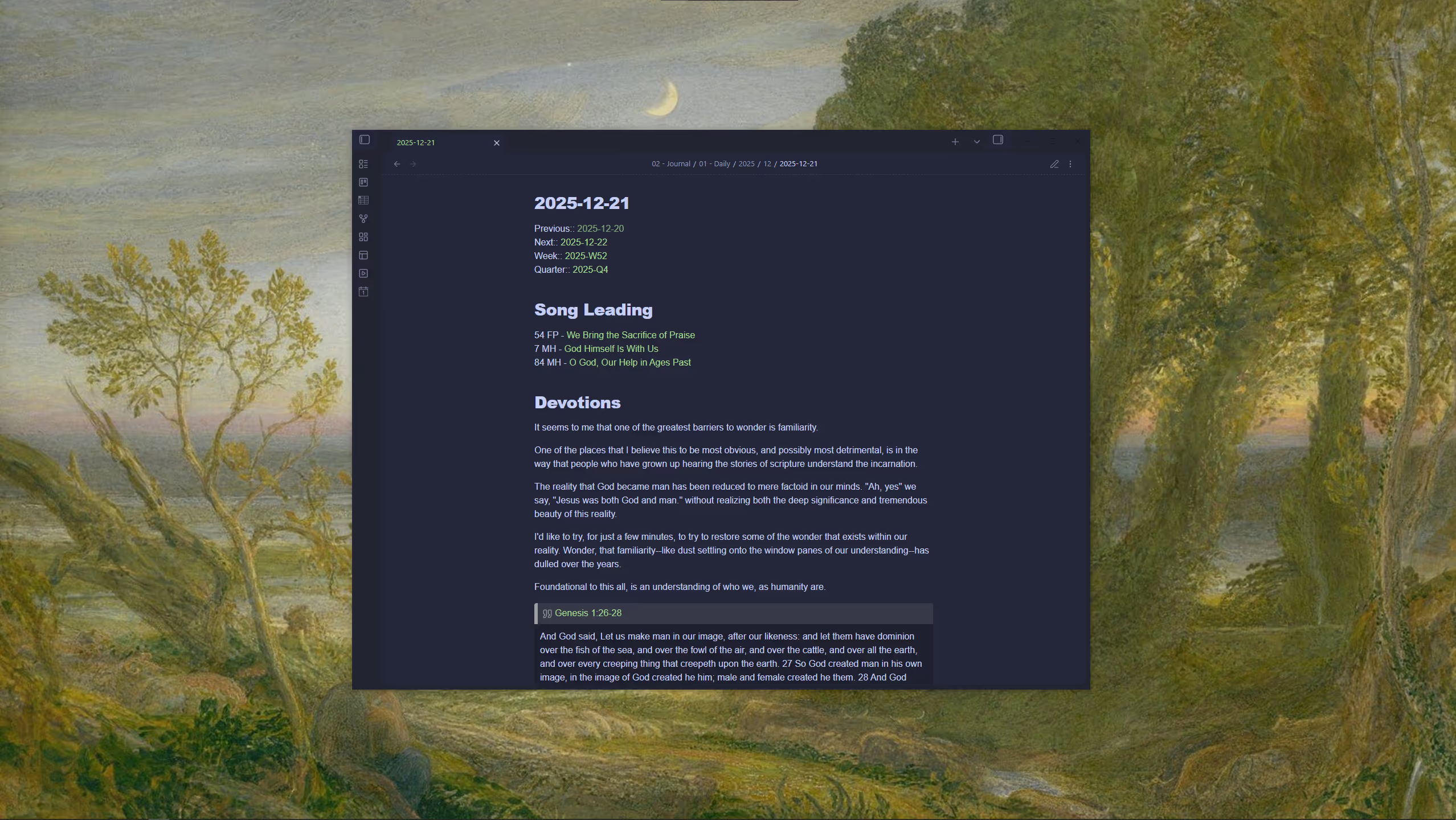
Optimization of my Digital Environment
It has long been my view that the our physical space matters.
There’s nothing particularly profound about this view, but it’s something that I come back to time and time again. Intentionality in how we lay out and configure our physical spaces has a dramatic effect on our well-being. There have been countless times throughout my adult life that I have neglected properly attending to the physical spaces for which I am responsible, and the effects are always negative.
Over the last several years of working 8+ hour days in software development and data analysis, I have come to realize that our digital spaces also deserve our intentionality, and to be tailored to our particular needs.
I’d like to tell you about a few of the ways that I have tailored my digital environment to be one within which I can move and work with as little friction as possible.
Aesthetics
General Philosophy
I find a computing environment that is aesthetically pleasing to be easier to work within. I have attempted a more utilitarian approach, and have found that it doesn’t work for me.
I spend time configuring the appearance of any application that allows me to do so. I have fonts and color-schemes that I like, and that I seek to implement in as many parts of my system as I can to create a unified experience throughout.
Desktop Optimizations
There are few places on a computer as disorganized as the Desktop. Here are a few ways I have brought some calm to the chaos.
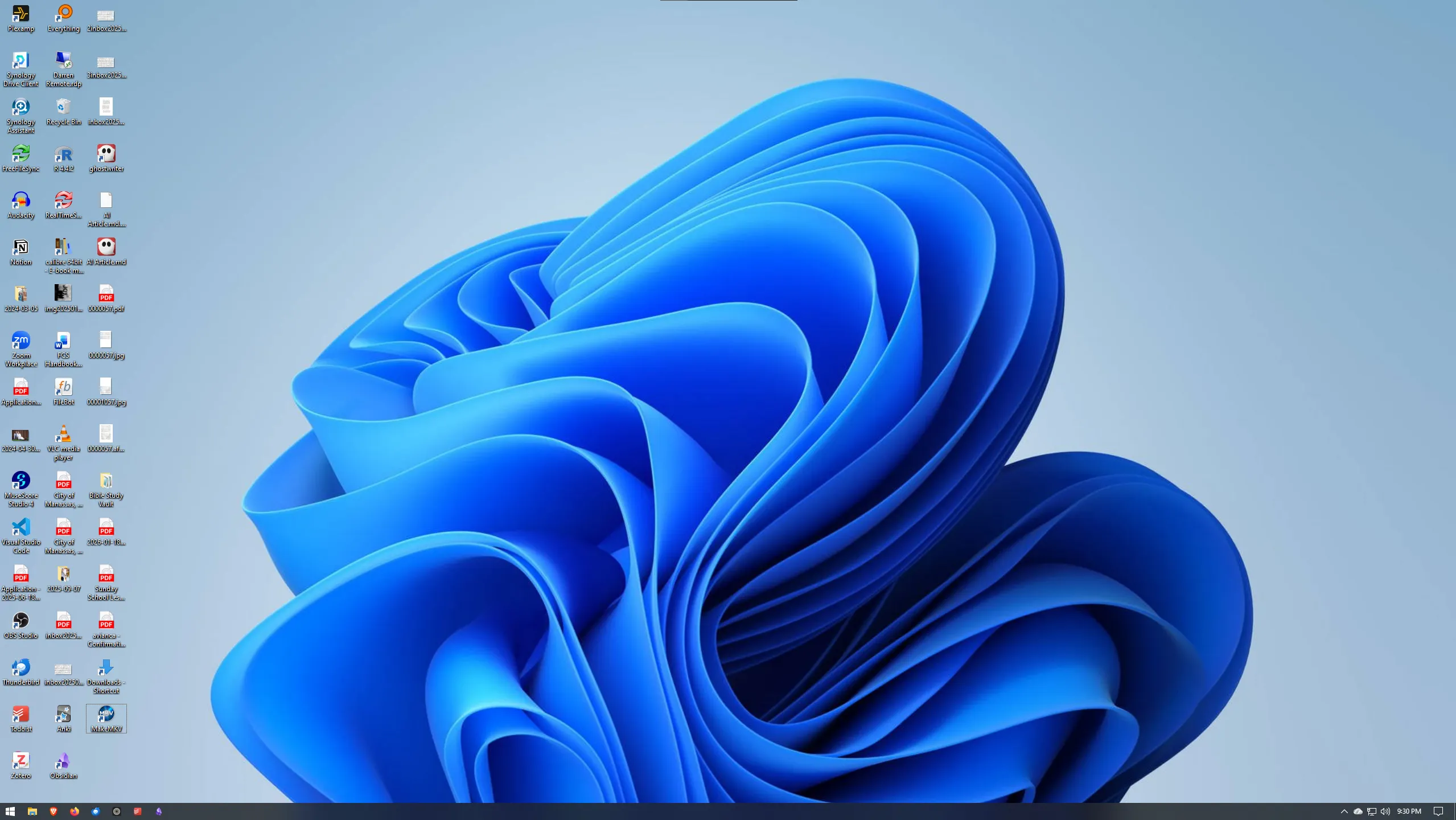
A Beautiful Wallpaper
This is what you see every time you log into your computer, you may as well look at something lovely rather than some soulless stock photo or rendering.
I’ve curated a folder full of artwork from Artvee that I keep in rotation. Find something you like, and add a little dose of loveliness to your day.
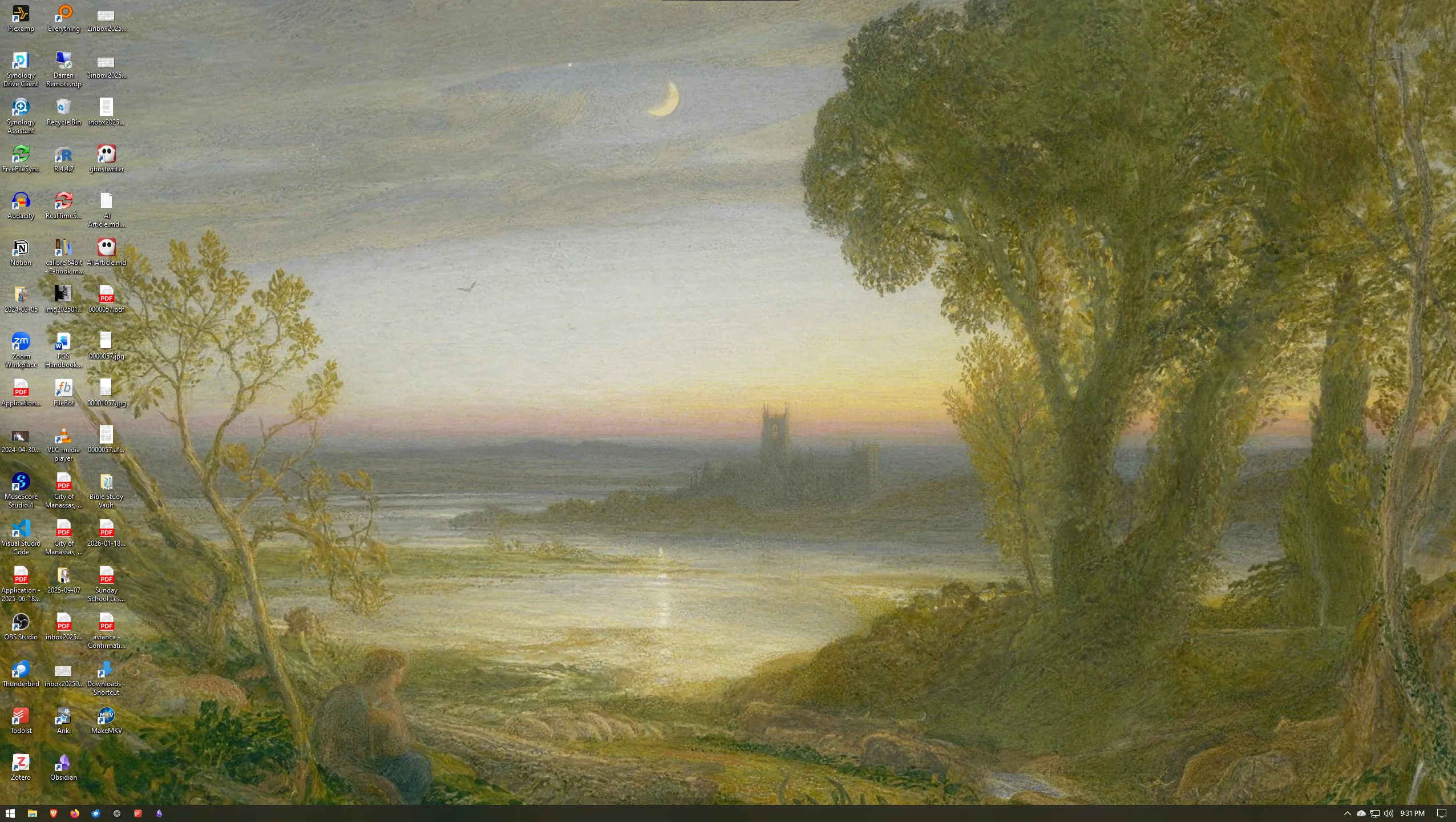
Hide Desktop Icons and Taskbar
The convenience of “I’ll just save that to the Desktop” is far outweighed by the disorder that it inevitably leads to. The Desktop isn’t a place where things should permanently live, so why should I see those files and shortcuts every time I log into my computer.
In addition to hiding my Desktop icons, I also hide my taskbar. The visual clutter it adds far exceeds its usefulness. If I really need to use it, I just move my mouse to the bottom of the screen, and up it pops.
Sweet serenity.

Organization
General Philosophy
Everything lives in a folder. This is true whether I’m intentional about it or not, so I may as well be intentional.
I name files with in a specific format {Date} - {Filename} (ISO-8601) this facilitates chronological sorting by filename that works regardless of when I created or modified a file.
The same is true of folders, which are often prepended with the year and the month.
└── Documents/
	└── 2026-01 - Important Project/
		├── 2026-01-01 - Brainstorming.md
		├── 2026-01-07 - Data.xlsx
		└── 2026-01-07 - Report.pdf
Daily Folders
So what about those times when I just need to quickly save a file but I have no idea where it should live long-term? This is where my daily working folders come into the picture. I simply use my hotkey to open the Daily Folders directory, create a new folder, rename it to today’s date, save the file, and move on with my day.
└── Documents/
	└── 00 - Daily Folders/
		├── 2026-01-13
		├── 2026-01-13
		├── 2026-01-21
		└── 2026-01-25
Everything.exe
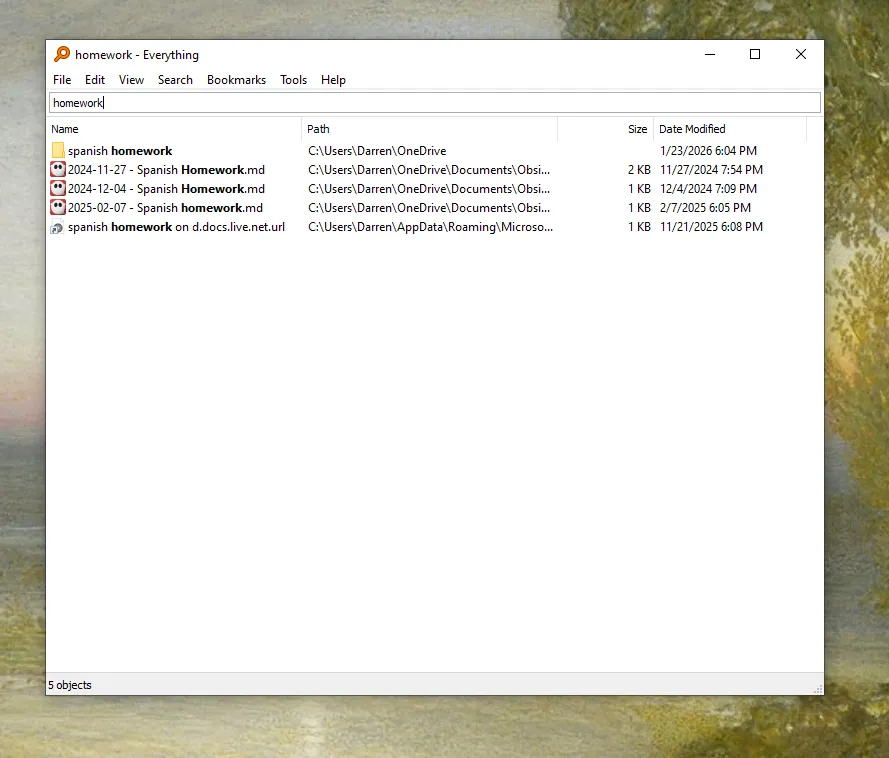
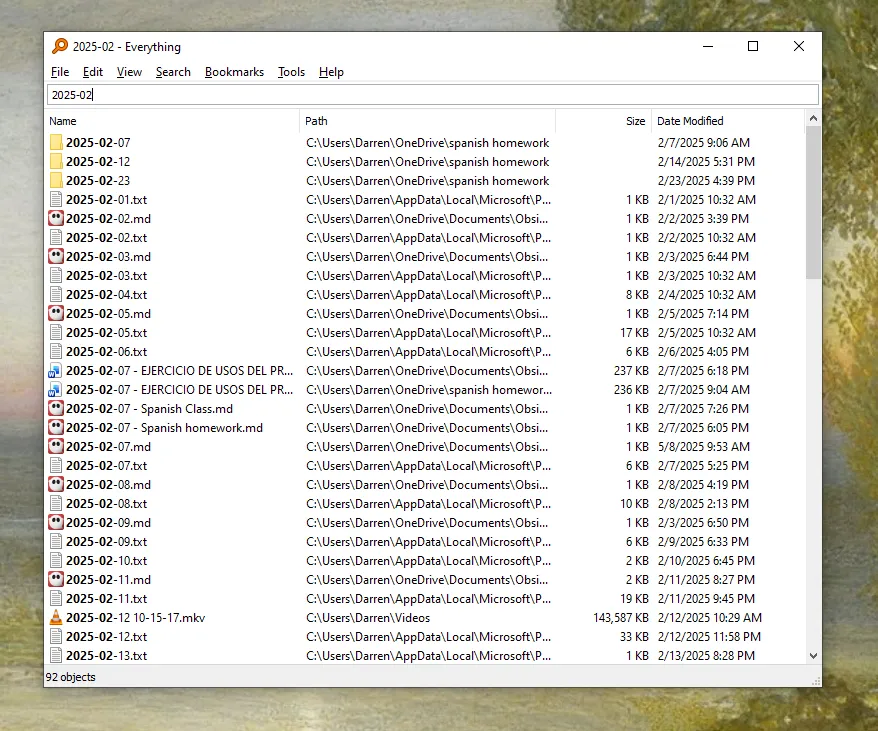
When I “know” I’ve saved a file somewhere, but I just can’t find it, I turn to Everything.exe. Everything is a free file and folder search application that puts Window’s built in file search functionality to shame. It’s fast, free, and just works.
This is where this approach to file naming becomes really powerful. Not only can I search by the name of the file, but if I remember the approximate date I saved the file, I can use that to narrow my search as well.
Optimization
System-wide Hotkeys with AutoHotKey
I’ve used AutoHotKey, an open-source scripting language to create system-wide hotkeys that can be triggered from anywhere in the system.
I’m able to launch programs, open folders, auto-type text, remap keys, and even type Spanish characters with a simple key combination (á, é, í, ó, ú, ñ). No more looking up alt codes!
This script runs automatically on startup, and offers me a toolbelt full of easily-accessible utility.
Remaps
-
CapsLock -> Esc - I use VIM key-bindings everywhere that I can, this saves my pinky from straining for the Esc key hundreds of times a day.
-
Alt+Left/Right - Jumps to the beginning or end of a line (using the Home and End keys). Paired with shift, this selects text to the beginning or end of a line.
CapsLock::Esc

!Right::Send {end}
!+Right::Send +{end}

!Left:: Send {home}
!+Left:: Send +{home}
Hotstrings
AutoHotKey also supports string-expansion: where you type a short string, and it expands to something else. I find this very useful for things that I end up typing over and over like my email address, or the dates that I use in file and folder naming.
For example, if I type “;day” it will automatically expand to the current date, formatted in YYYY-MM-DD format.
:*:;@::email@email.com

; Example: 2026-02
:*:;month::
FormatTime, TimeStamp,, yyyy-MM
Send, %TimeStamp%
return

; Example: 2026-02-01
:*:;day::
FormatTime, TimeStamp,, yyyy-MM-dd
Send, %TimeStamp%
return

; Example: 09:30
:*:;time::
FormatTime, TimeStamp,, HH:mm
Send, %TimeStamp%
return
Folder Shortcuts
I have a series of Shift + Alt + Number shortcuts set up to launch programs or open folders with the press of a key-stroke.
!^1::Run, ".\Obsidian.exe"
!^4:: Run, ".\explorer.exe" ".\Documents\00 - Daily Folders"
Conclusion
These are just a few of the things I do to create a pleasant working environment within my digital spaces. I’ll likely do some deep-dives into some of the particulars of my system at a later date, but for now, I hope that this can serve as inspiration for you to take the time to tailor your digital spaces to your needs.
Soli Deo Gloria